Don’t have time to read the full breakdown? Listen to the summary first, then use the written article.
If you've been into computers long enough, you already know how this goes.
You start planning a build because you actually need something. Then you start watching reviews. Then you start looking at benchmarks.
Then somebody on YouTube tells you the GPU you picked isn't fast enough. Somebody on Reddit tells you 64 GB of RAM isn't enough. Somebody else tells you the SSD you already own is suddenly unusable because something newer came out six months ago.
Before long, the computer you were trying to build has very little to do with the computer you actually need.
I didn't want to do that this time. I wanted to build the workstation I needed.
Something that could handle the way I really work: software development, local AI, photography, video production, writing, research, Linux, Windows, DaVinci Resolve, Lightroom, Luminar Neo and whatever else I decide to throw at it.
What I ended up with is a compact workstation built around an Intel Core Ultra 7 270K Plus, an Intel Arc Pro B70 with 32 GB of ECC VRAM, 64 GB of DDR5-5600, and 13 TB of internal SSD storage.
Not everything in it is new. That is part of the story too.
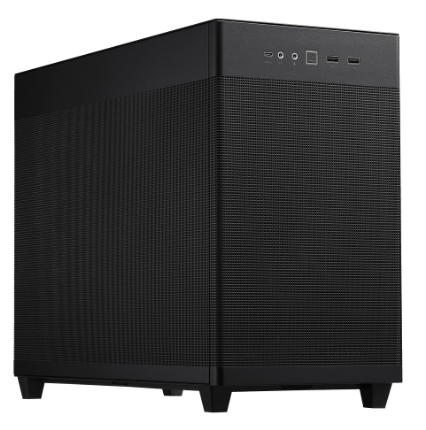
The black ASUS Prime AP201 keeps the workstation compact.
You Have to Judge a Build by When It Was Built
I think this gets lost when people talk about computers online. Six months later, everybody knows what you should have bought. But that isn't how buying hardware works.
What did the part cost when I actually needed it? What was available? What did I already own? What was happening in the market?
And most importantly: What problem was I trying to solve?
At the time I was putting this system together, RAM and SSD pricing had gotten ugly.
That wasn't just something I was seeing at retail. TrendForce reported conventional DRAM contract prices rising roughly 93–98% quarter-over-quarter in the first quarter of 2026, followed by another projected 58–63% increase in the second quarter. NAND Flash contract prices were also forecast to rise 55–60% in Q1 and another 70–75% in Q2 as AI and data-center demand continued pulling supply toward higher-margin products.
Client SSDs weren't immune either. TrendForce projected client SSD contract prices to increase by more than 40% in Q1 as suppliers shifted NAND toward enterprise storage.
So yes, the hardware market affected this build.
I had originally thought about going straight to 128 GB of RAM. That changed.
I also wasn't going to throw away perfectly good high-capacity SSDs just so every line on the parts list could say “new.”
I reused what still made sense. That isn't cutting corners. That's knowing the difference between needing an upgrade and wanting one.
The Receipts Matter Too
Another thing I wanted to keep in perspective was what I actually paid—not what somebody says the hardware should cost today.
I caught the Core Ultra 7 270K Plus for $199.99. The Gigabyte Z890M AORUS ELITE WIFI7 ICE was $189.99. I paid $1,299.99 for the ASRock Arc Pro B70 Creator 32 GB.
The Corsair RM1200e was $144.63, the AP201 case was $89.99, and the AIO I purchased for the build was $129.99.
Those prices are part of the reason I keep saying: At the time I built it.
Intel's own suggested starting price for the reference B70 was $949, but Intel was also clear that partner-card pricing would vary by configuration.
I didn't buy an imaginary reference card at MSRP. I bought the actual hardware that was available to me. That's the number that matters when you're standing there with your credit card.
The CPU Was an Easy Decision
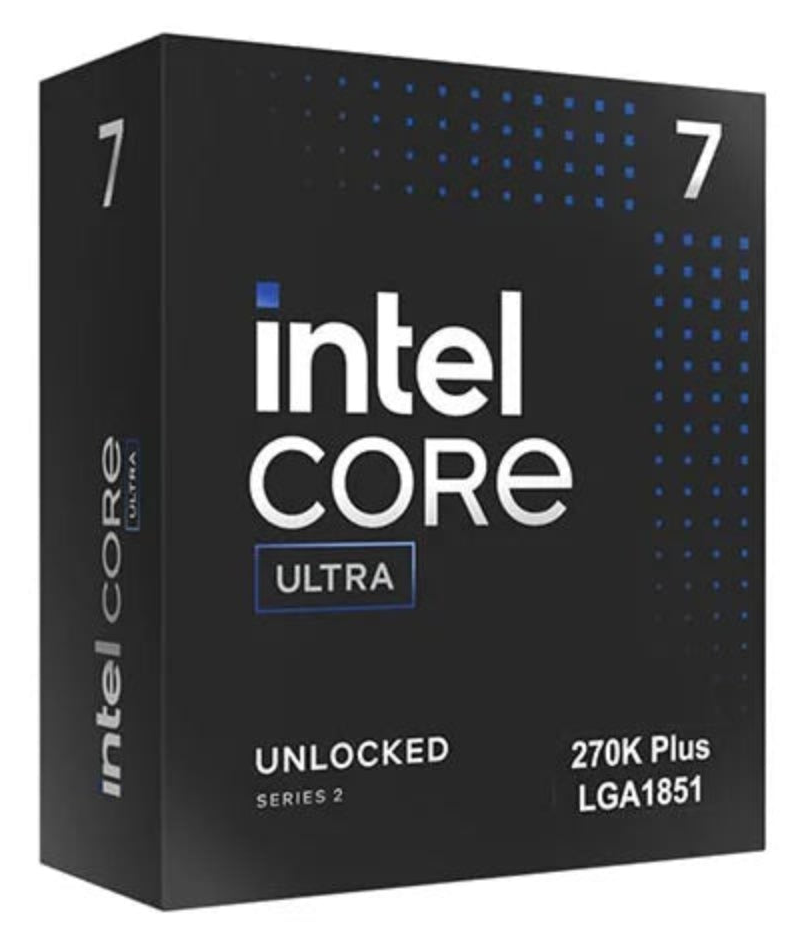
Intel Core Ultra 7 270K Plus — the 24-core LGA1851 processor at the center of this build.
The Core Ultra 7 270K Plus turned out to be one of the strongest choices in the whole build.
It has 24 cores and 24 threads—eight Performance cores and sixteen Efficient cores—with boost clocks up to 5.5 GHz and 36 MB of Smart Cache.
But specifications only tell part of the story.
Puget Systems tested the 270K Plus across professional content-creation workloads and found it was the fastest CPU in its DaVinci Resolve testing at the time, narrowly beating higher-tier and competing processors in several areas.
For what I paid for it?
I don't have much to complain about.
It gives me enough cores for development, compiling, multitasking and production work without forcing the entire build onto a much more expensive workstation platform.
The LGA1851 Upgrade Path Is Short
There is one thing about this platform worth acknowledging.
The Core Ultra 7 270K Plus uses Intel's LGA1851 socket and the 800-series motherboard platform. LGA1851 is still a current platform. Intel launched the 200S Plus processors in March 2026, kept them compatible with existing 800-series motherboards, and says additional 800-series boards will continue coming to market throughout 2026.
So this isn't a dead platform.
But its future CPU upgrade path appears to be short.
Intel has already confirmed that its next-generation Nova Lake processors are coming at the end of 2026. The industry is also preparing for Intel's next desktop socket, LGA1954, which means I don't expect a future Nova Lake processor to drop into this Z890 motherboard.
That is a different situation from LGA1700, which supported Intel's 12th-, 13th- and 14th-generation desktop processors. There is some nuance there—the 13th- and 14th-generation products were both based on the Raptor Lake family—but buyers still had several years of processor options on the same basic socket platform.
LGA1851 has had a much shorter run: Core Ultra 200S followed by the 200S Plus refresh.
There are reports that LGA1954 may support more than one future Intel CPU generation, potentially signaling a move back toward longer-lived desktop platforms. But Intel hasn't formally committed to that strategy yet, so I wouldn't buy a motherboard today based on that assumption.
There is at least some good news for the hardware around the socket. LGA1954 retains similar physical dimensions, and cooling manufacturers are already preparing for it. Noctua, for example, has confirmed that its LGA1700 and LGA1851 coolers can mount directly to LGA1954 without additional hardware. That doesn't automatically guarantee compatibility for every existing cooler, but it suggests changing sockets won't necessarily mean replacing everything around the CPU.
For this build, none of that changes my decision.
I didn't buy the Z890 motherboard because I expected to keep dropping new processors into it for the next five years. I bought it because the Core Ultra 7 270K Plus did what I needed at a price that made sense.
If the processor eventually becomes the thing holding this workstation back, I'll evaluate the CPU and motherboard together.
I bought the platform for what it can do now.
Not for a processor I may or may not want later.
That ending fits especially well because the rest of your article repeatedly makes the same argument: components should solve the workload you actually have rather than hypothetical future problems
64 GB Is Enough Until It Isn't
This might be the part some people disagree with.
I'm using 64 GB of DDR5-5600, two 32 GB DIMMs.
Would 128 GB be nice? Of course.
Do I need 128 GB today? No. And that matters.
Puget Systems did its own memory-capacity testing during the same 2026 RAM crunch and came to a conclusion that lines up pretty well with what I've seen: 64 GB is a sweet spot for a lot of serious content-creation work. Its Resolve testing found 64 GB particularly useful for Fusion and more demanding workflows, while going below that could start affecting performance depending on the workload.
They also documented just how ugly memory pricing had become. One DDR5-5600 32 GB module used in their example went from $98 in May 2025 to $478 in May 2026.
So no, I wasn't rushing out to buy another 64 GB just because the motherboard has four DIMM slots.
I'll move to 128 GB when one of two things happens: My workload tells me I need it. Or RAM prices stop irritating me.
Until then, 64 GB stays. Those empty DIMM slots aren't hurting my feelings.
Yes, I Went With Intel Graphics
This is probably where the comments will start. The GPU is an Intel Arc Pro B70 Creator with 32 GB of ECC GDDR6.
Yes, Intel. No, I didn't forget NVIDIA and AMD exist. And no, I'm not going to tell you the B70 is the fastest professional GPU on the market. It isn't.
Intel's B70 has 32 Xe cores, 256 XMX engines, 367 peak INT8 TOPS, 32 GB of ECC GDDR6 and 608 GB/s of memory bandwidth. It also supports PCIe 5.0 x16, H.264, HEVC and AV1 hardware encode/decode, oneAPI, OpenVINO and OpenCL.
But the number that mattered most to me was:
32 GB.
Because local AI changes the way I look at GPUs. There is raw speed. And then there is the question of whether your workload fits in memory. Those aren't always the same conversation.
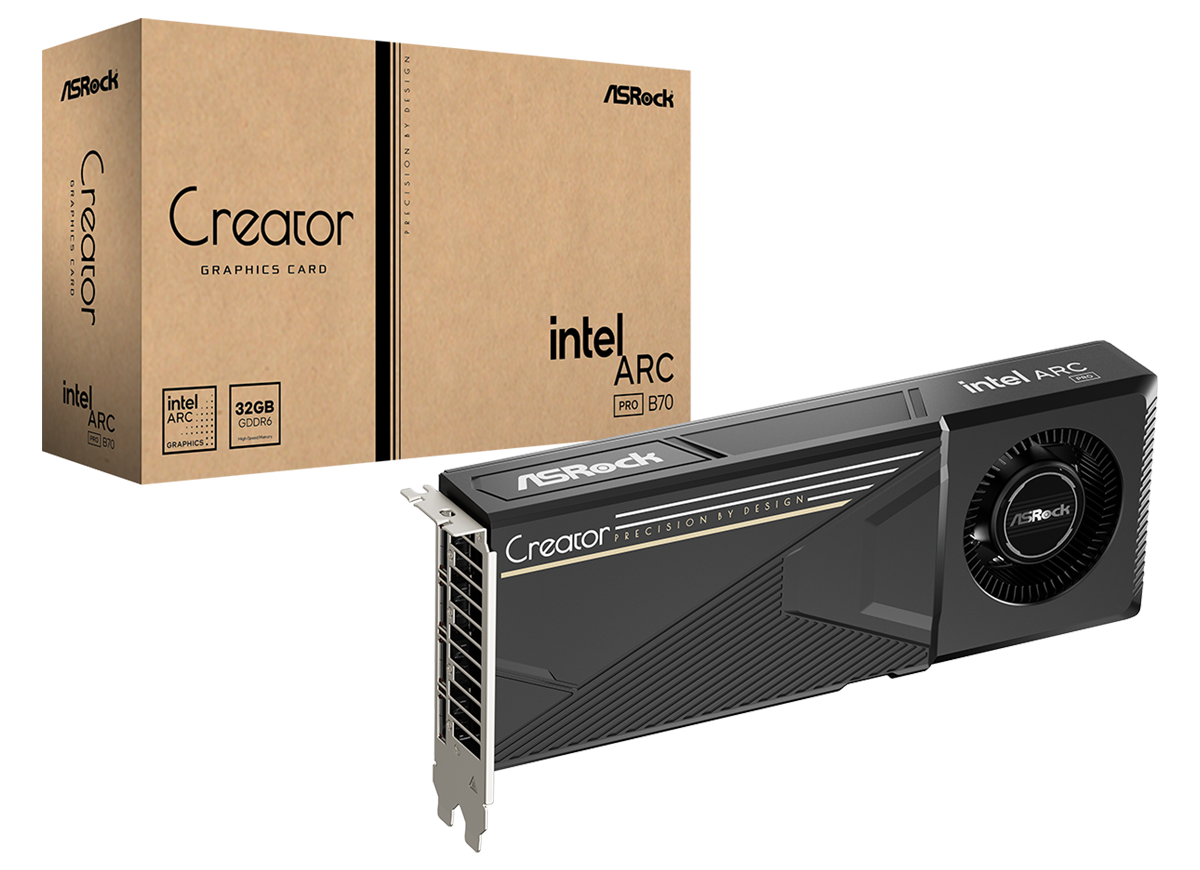
32 GB of VRAM was central to why the B70 Creator made sense for this workstation.
Why the B70 Made Sense to Me
At the time I was building this workstation, cost mattered. So did VRAM. So did media support. So did local AI.
And I wanted something different enough that I could actually learn another compute stack instead of automatically falling back on CUDA for everything.
Puget's testing reinforces the tradeoff pretty well. In DaVinci Resolve, it found the B70 to be a solid performer rather than a category leader. It was faster than the RTX PRO 2000 Blackwell in their testing but behind the Radeon AI PRO R9700 and RTX PRO 4000 Blackwell overall. It did particularly well in LongGOP and AI workloads while falling behind more in some RAW, GPU-effects and Fusion workloads.
That's fair. I'm not interested in pretending weaknesses don't exist just because I bought the card.
But Puget also found something else that explains the B70 much better: It's really an AI-first professional GPU.
In its MLPerf testing, the B70 produced the highest token-generation rate of the GPUs Puget tested in that particular comparison. Puget's later B70 work continued to emphasize the card's 32 GB VRAM and inference-oriented design while also documenting the software limitations that still exist in Intel's ecosystem.
That is much closer to why I bought it. Not because it wins every chart. Because its strengths line up with things I actually want to do.
13 TB, and Every Drive Has a Job
The storage layout might be my favorite part of the build. There is 13 TB of internal SSD storage, but I didn't want one giant pile of files. Every drive has a purpose.
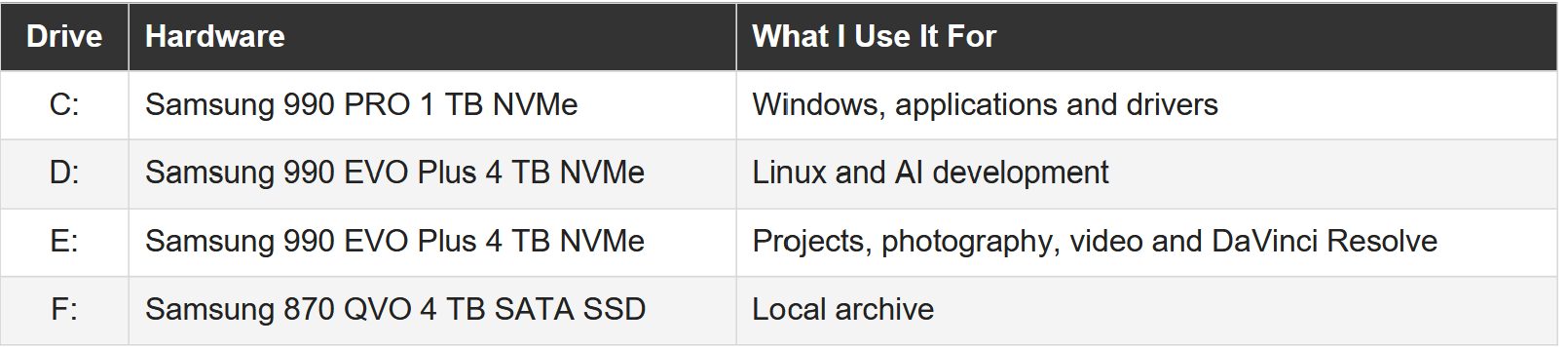
The two 4 TB 990 EVO Plus drives are capable of up to 7,250 MB/s sequential reads and 6,300 MB/s writes according to Samsung.
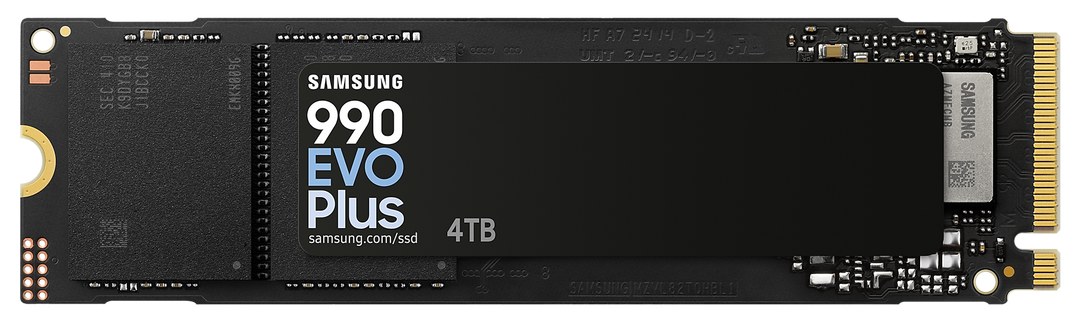
Two 4 TB 990 EVO Plus drives separate Linux and AI work from projects and media.
The 870 QVO is obviously slower at SATA speeds—up to 560 MB/s reads and 530 MB/s writes—but that's fine. It's an archive drive. I don't need my archive drive trying to win a benchmark. I need it to hold files.
That is one of the things I think gets overlooked in PC building. Not every component needs to be the fastest component. It needs to be fast enough for its job.
Windows on the Outside, Linux on the Inside
I thought seriously about going full Linux. I like Linux. I use Bash more than PowerShell. A lot of development work simply feels more natural to me there.
But I also use Windows creative software. So I decided I wasn't going to choose.
The workstation runs Windows 11 Home, and I use Ubuntu through WSL 2 as my Linux development environment.
Microsoft supports GPU-accelerated machine-learning workflows through WSL, including Intel GPUs through DirectML-based paths, and WSL gives me a Linux environment without giving up Windows applications.
On the Intel side, I'm using the oneAPI 2026.1.x toolchain, SYCL, Level Zero, OpenVINO, PyTorch's Intel/XPU path, Python, Rust, Git, CMake, Ninja and llama.cpp.
Intel's 2026.1 toolchain officially supports Intel Arc graphics and added Ubuntu 26.04 LTS support for client GPU platforms. Intel also specifically called out strengthened Arc Pro B70 support in the 2026 generation of oneAPI.
That doesn't mean everything is as easy as CUDA. It isn't.
I've already spent time getting the SYCL side of llama.cpp configured correctly. But that's part of the reason this machine exists. Sometimes I actually enjoy figuring this stuff out.
But This Isn't Just an AI Box
The workstation also has to earn its keep creatively. I use DaVinci Resolve Studio for video production. I also use Adobe Lightroom and Luminar Neo for photography. That's important because I didn't want to build a machine that was great at local models and awkward at everything else I do.
DaVinci Resolve
I didn't want to judge Resolve performance by looking at component specifications. So I ran PugetBench. Then I ran it again. Then again. Then again.
The first result was noticeably lower than the next three, so I treated it like what it looked like: an outlier.
The final three runs settled into a tight range. The median baseline came out to:
Basic: 143,355
Standard: 98,636
The same stable run produced category scores of 92.4 LongGOP, 92.6 Intraframe, 95.9 RAW, 102 GPU Effects, 152 Fusion and 72.8 AI.
And the three stable runs were 142,731/98,380, 146,976/100,119 and 143,355/98,636.
That's the performance number I care about. Not what the machine is supposed to do. What my machine repeatedly did.
Lightroom and Luminar NeoCase & Storage
Photography is another major part of the workload.
Adobe currently recommends 16 GB or more of system RAM, a fast SSD, and 8 GB of dedicated GPU memory for full GPU acceleration and AI features such as Denoise, Lens Blur and Reflection Removal in Lightroom Classic.
This machine obviously clears those requirements. But I'm not going to pretend Lightroom needs a 32 GB workstation GPU. It doesn't.
In fact, Puget's B70 review found that the B70 wasn't the best-performing card in Lightroom among the professional GPUs it tested. The differences in overall Lightroom performance were fairly small, and Puget noted that much of Lightroom isn't heavily GPU-accelerated in the first place.
That's exactly the kind of context I think matters. The B70 isn't in the computer for Lightroom. Lightroom is simply another workload it can handle comfortably.
Luminar Neo is similar in that regard. Skylum recommends 16 GB or more of RAM and an SSD for best performance, and Neo can run either standalone or as a Lightroom Classic plug-in.
That's how I look at the machine as a whole. Not one application. A workflow.
Small Case, Serious Hardware
I also didn't want another huge tower sitting next to me. Everything lives inside an ASUS Prime AP201 micro-ATX case. It's roughly a 33-liter chassis, but ASUS still supports large GPUs, standard ATX power supplies, 360 mm-class liquid cooling and up to six fans in the platform.
Cooling is handled by a Cooler Master MasterLiquid 360 Atmos Stealth AIO liquid CPU cooler, priced at $129.99. Its 360 mm radiator uses three pre-installed Mobius 120 Black fans, giving the workstation substantial cooling capacity while keeping the all-black, low-noise direction consistent.
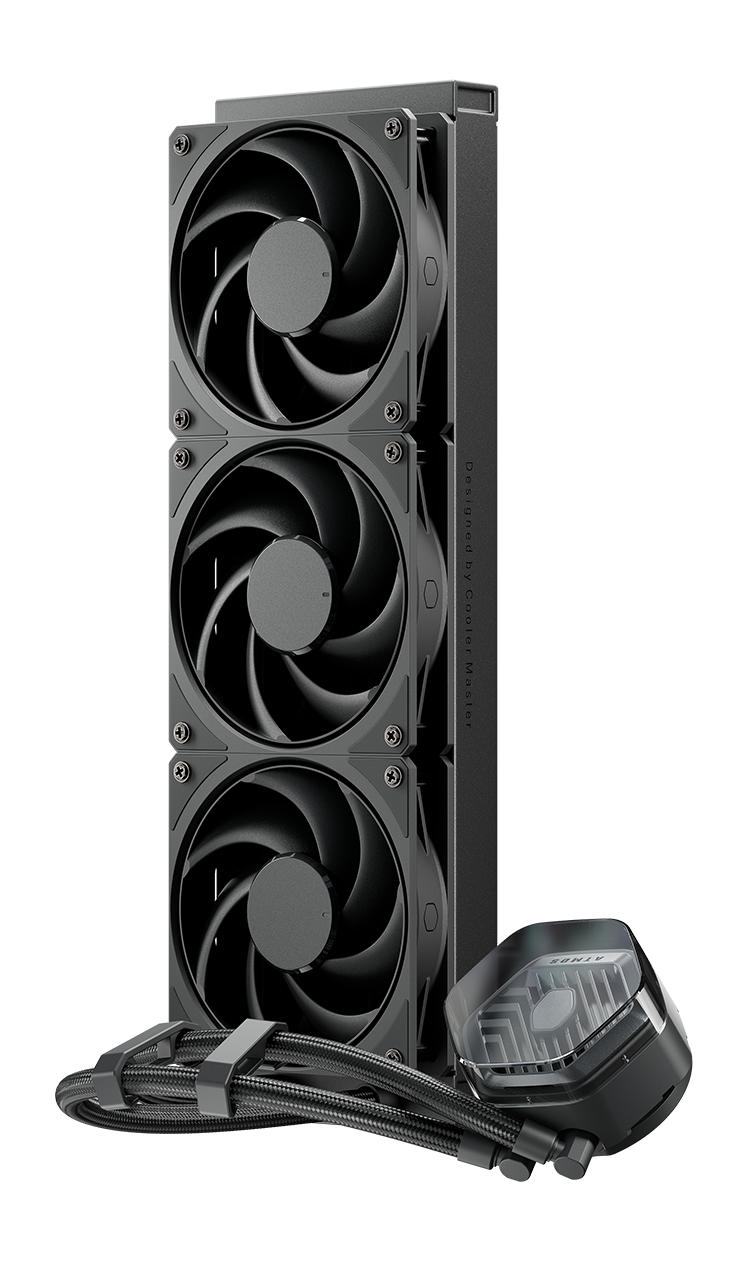
The $129.99 MasterLiquid 360 Atmos Stealth arrives with three Mobius 120 Black fans.
Power comes from a Corsair RM1200e 1200-watt fully modular PSU. Yes, 1200 watts is more than this particular configuration needs. I'm okay with that. Corsair rates the RM1200e for 1200 W continuous power, with ATX 3.1 compliance and 80 PLUS Gold efficiency.
The RMe Series RM1200e is fully modular and built for low-noise operation. It supports ATX 3.1 and PCIe 5.1 and provides quiet, reliable power with 80 PLUS Gold efficiency across a wide range of PC builds. At the time of writing, its listed price is $234.99.
A good power supply can live through more than one build. That's one area where I don't mind having headroom.
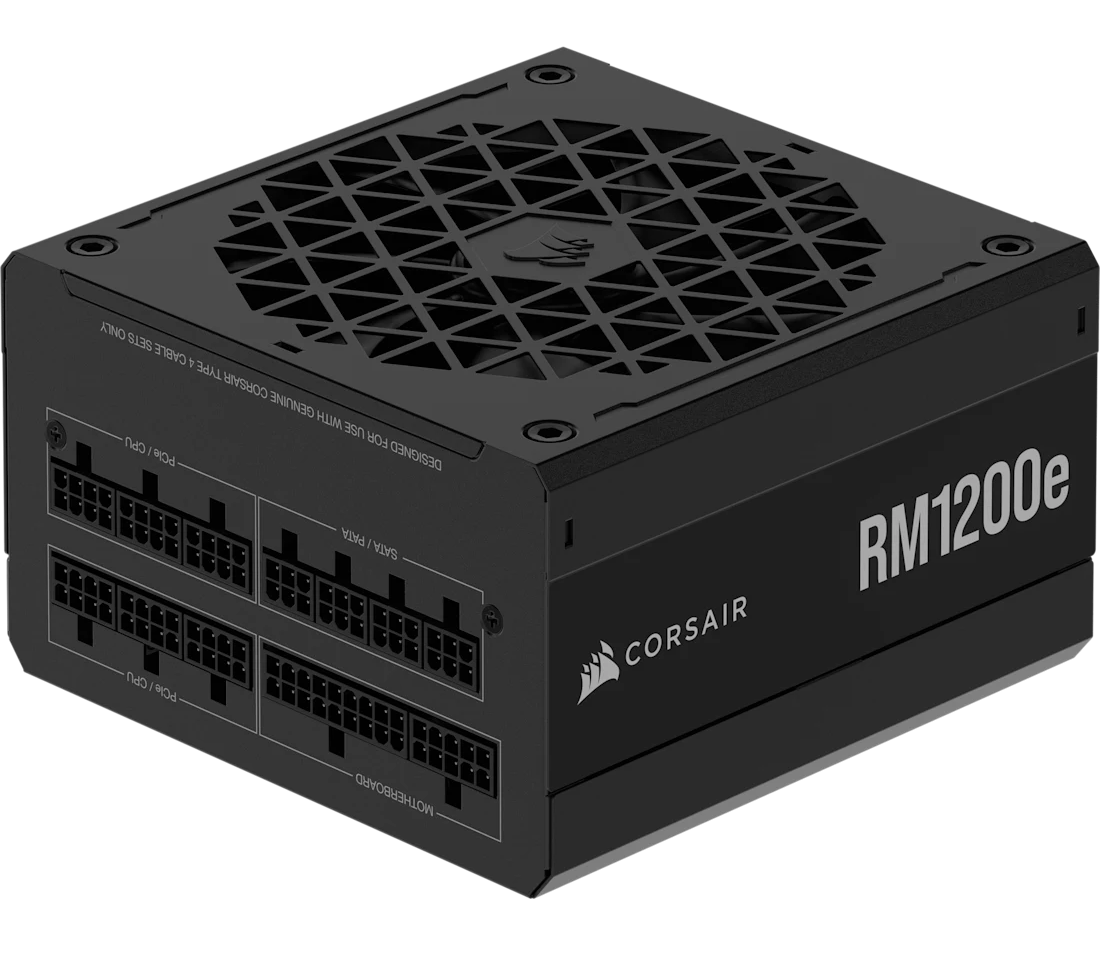
The Corsair RM1200e leaves power headroom for future upgrades.
Case airflow also includes three Noctua NF-P12 redux-1700 PWM fans, 120 mm pressure-optimized fans rated up to 1700 RPM.
10GbE Is Already Installed. I'm Just Not Using It Yet.
The motherboard has built-in 2.5Gb Ethernet, and that's what I'm currently using. There is also a TP-Link TX401 10GbE adapter installed.
The TX401 supports 10GBASE-T as well as 5, 2.5 and 1Gb Ethernet over its PCIe interface.
I'm just not using 10GbE as my active connection yet. Why? Because 2.5GbE is doing what I need right now.
When large media transfers, datasets, backups or other workloads make 2.5GbE feel slow, I don't have to buy anything. I'll switch cables and start using hardware that's already there.
Again: Having something doesn't mean I have to use it before I need it.
Would I Change Anything Today?
Not much. And that's probably the best compliment I can give a custom PC once the excitement of building it is over.
I wouldn't replace the CPU. I wouldn't replace the GPU. I wouldn't change the storage layout. I wouldn't change the power supply. And I'm not buying 128 GB of RAM right now just so the spec sheet has a bigger number on it.
Eventually? Probably. Memory is the obvious next upgrade. But I'll do it when it solves a problem. Not before.
What I Actually Built
When I look at the finished machine, I don't really think of it as an AI workstation. Or a video-editing workstation. Or a photography workstation. It's just my workstation.
I can develop software. Run local models. Work in Linux. Edit video. Process photos. Work in Lightroom. Use Luminar Neo.
Write. Research. Build things. Break things. Fix them.
And when I'm done, I can close all of that and use it like a normal PC. That's what I wanted.
I wasn't trying to build the fastest computer on the internet. I wasn't trying to win Reddit. I wasn't trying to buy the most expensive version of everything. I wanted to build something that made sense for the way I work.
And honestly, the RAM and SSD price crunch probably made me think about the build more carefully than I otherwise would have.
When prices get stupid, you start asking better questions.
Do I actually need this? Can I reuse what I already have? Will spending another $500 change anything I can actually do? Is this component faster because I need it to be faster—or because somebody told me the benchmark number should bother me?
Those are good questions. I think they made this a better workstation. Not because everything is new. Not because it wins every benchmark. But because almost everything inside it has a reason for being there. That's how I like to build things.
Understand the problem. Pay attention to the details. Use what still works. Spend money where it actually matters. And don't upgrade just because somebody on the internet told you to.
The Build
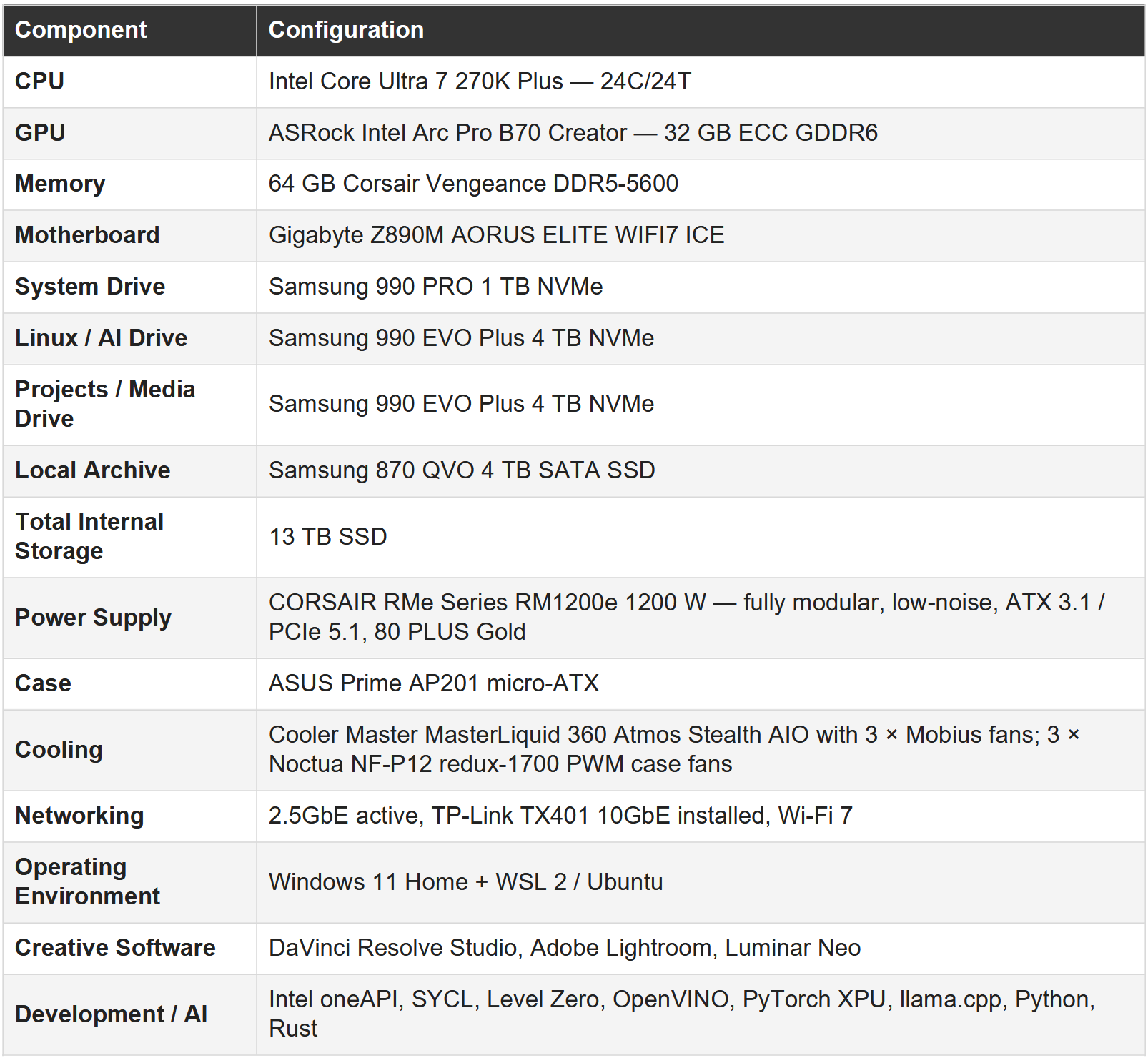
Coleman Harper is a U.S. Army veteran, filmmaker, novelist, technologist, and the founder of Blerd Corner LLC — a creative studio and publishing imprint specializing in film & video production, post-production, brand photography, and original storytelling. This hybrid AI and creator workstation was built around the way he actually works: local AI, software development, filmmaking, photography, writing, and research across Windows and Linux.